
Model
The AI that will make it for you. Each one has its own look and price. Not sure? Keep the one that's already picked.
 Kling 4.0Kuaishou (Kling)46 Credits
 Veo 3.1 FastGoogle
- Veo 3.1Google
 Grok Imagine VideoxAI
- Grok Imagine Video 1.5xAI
 Sora 2 ProOpenAI
- Sora 2OpenAI
- Kling 4.0 FlashKuaishou (Kling)
- Kling 3.0 OmniKuaishou (Kling)
- Kling O1Kuaishou (Kling)
- Kling 3.0 Motion ControlKuaishou (Kling)
- Kling 2.6 Motion ControlKuaishou (Kling)
- Kling Avatar V2Kuaishou (Kling)
- Kling Lip SyncKuaishou (Kling)
- Kling 3.0Kuaishou (Kling)
- Kling v2.6Kuaishou (Kling)
- Kling v2.5 Turbo ProKuaishou (Kling)
 Wan 2.5 T2VAlibaba (Wan Video)
- Wan 2.5 T2V FastAlibaba (Wan Video)
- Wan 3.0Alibaba (Wan)
- Wan 3.0 PrimeAlibaba (Wan)
- Happy Horse 1.1Alibaba
- Happy Horse 1.0Alibaba
- Wan 2.7 T2VAlibaba (Wan)
- Wan 2.7 I2VAlibaba (Wan)
- Wan 2.7 R2VAlibaba (Wan)
- Wan 2.7 VideoEditAlibaba (Wan)
- Wan 2.6 T2VAlibaba (Wan)
- Wan 2.6 I2VAlibaba (Wan)
- Wan 2.6 I2V FlashAlibaba (Wan)
- Wan 2.5 I2VAlibaba (Wan Video)
- Wan 2.5 I2V FastAlibaba (Wan Video)
- Wan 2.2 T2V FastAlibaba (Wan)
- Wan 2.2 I2V FastAlibaba (Wan)
- Wan 2.2 5B FastAlibaba (Wan)
- Wan 2.2 S2VAlibaba (Wan)
- Wan 2.2 Animate ReplaceAlibaba (Wan)
 Seedance 2.5ByteDance
- Seedance 2.0ByteDance
- Seedance 1 ProByteDance
- Seedance 1 Pro FastByteDance
- PIPixVerse v5PixVerse
- PIPixVerse v4.5PixVerse
- LURay 2 720pLuma Labs
- LURay Flash 2 720pLuma Labs
 Hailuo 2.3MiniMax
- Hailuo 2.3 FastMiniMax
Start from words only. You describe the video and the AI makes it from scratch.
Describe the video in your own words, as if telling a friend: who is in it, what they do, where it happens and what you hear. More detail gets you closer to what you imagine.
Aspect Ratio
The shape of the result. 16:9 is wide, like YouTube or a TV. 9:16 is tall, like TikTok or phone stories. 1:1 is square, like an Instagram post.
Duration
How many seconds long the video will be. Longer videos cost more credits.
Resolution
How sharp the result is. Higher numbers look sharper but cost more credits and take longer. Try a lower one first to test your idea.




Kuaishou (Kling) · Text & image to video
Kling 4.0 AI Video Generator
Use Kling 4.0 online to make AI video from a prompt, a photo, a set of reference images or your own footage: clips of 5 to 30 seconds at 720p or 1080p, plus video edits from one written instruction.
Real results
Discover What Kling 4.0 Can Create
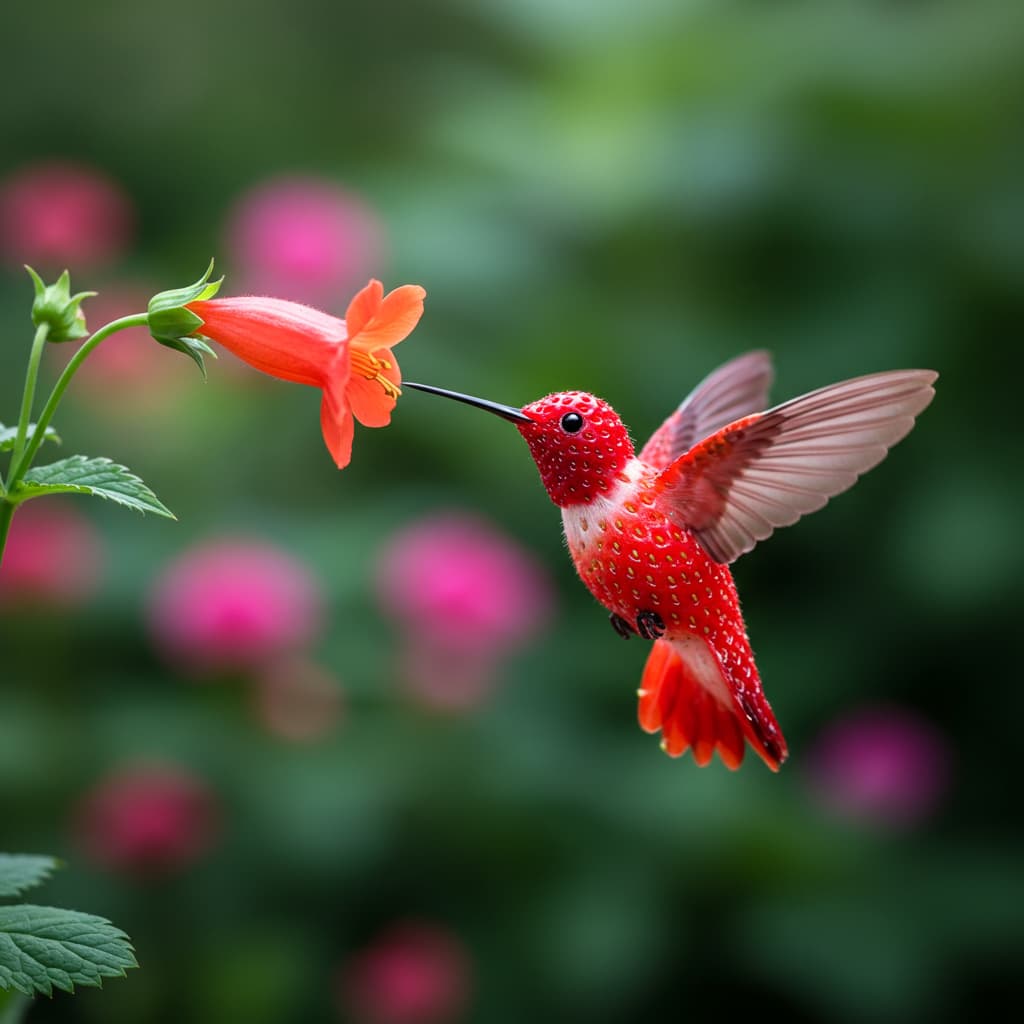
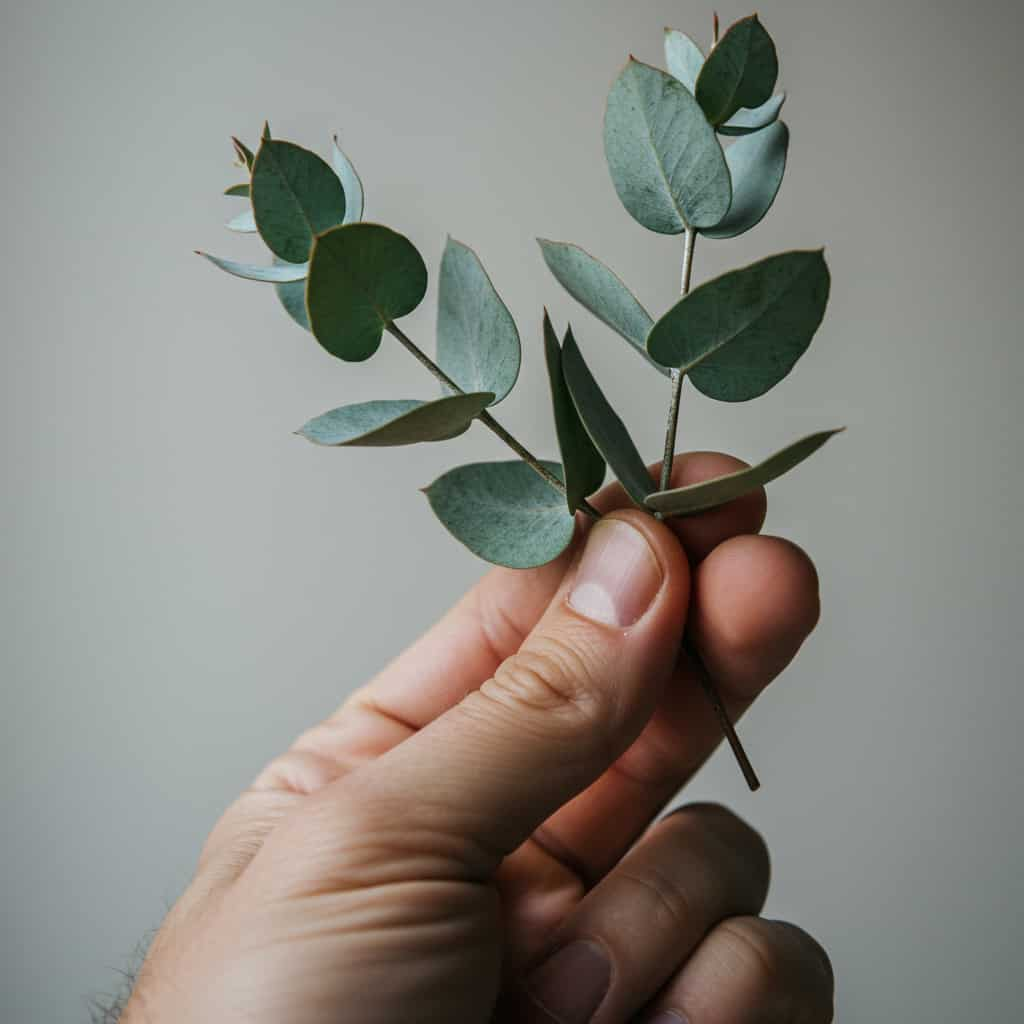
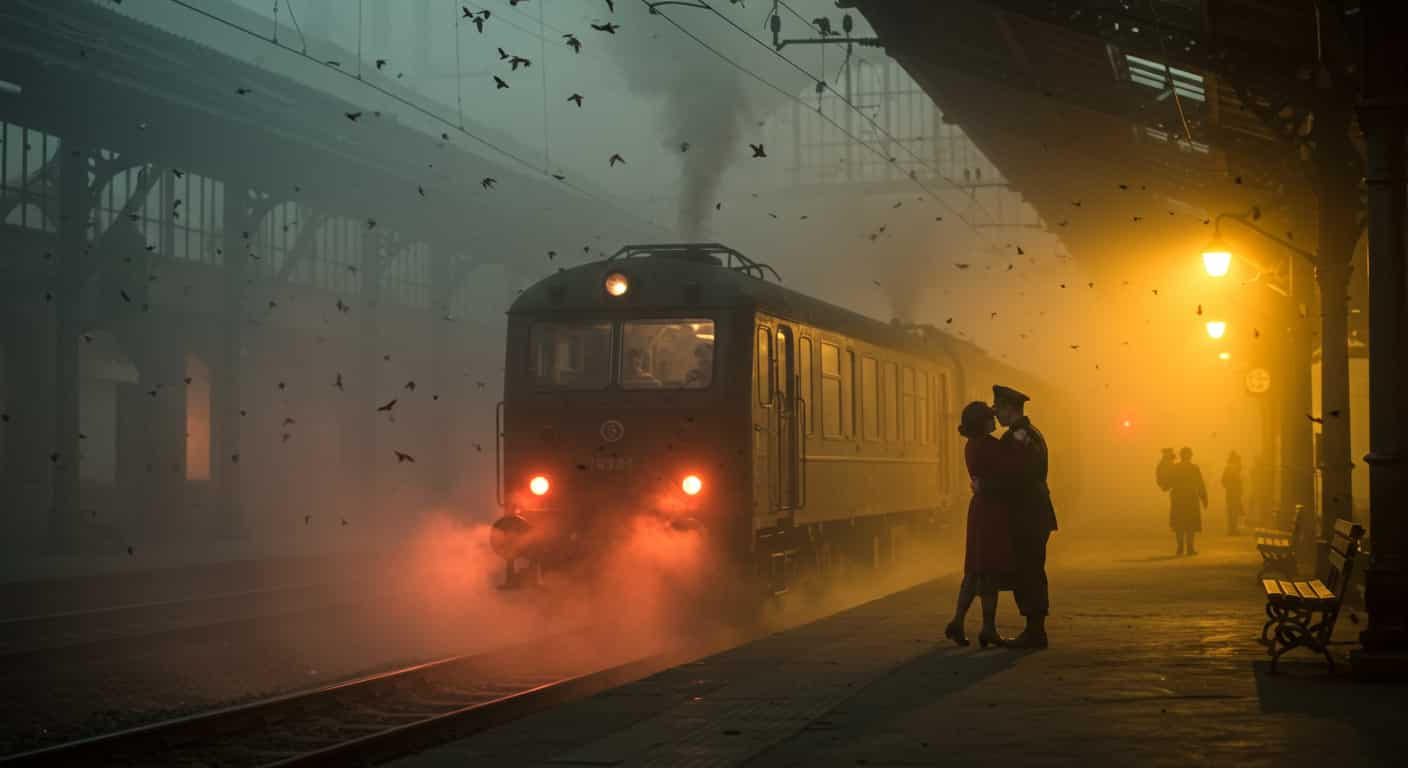
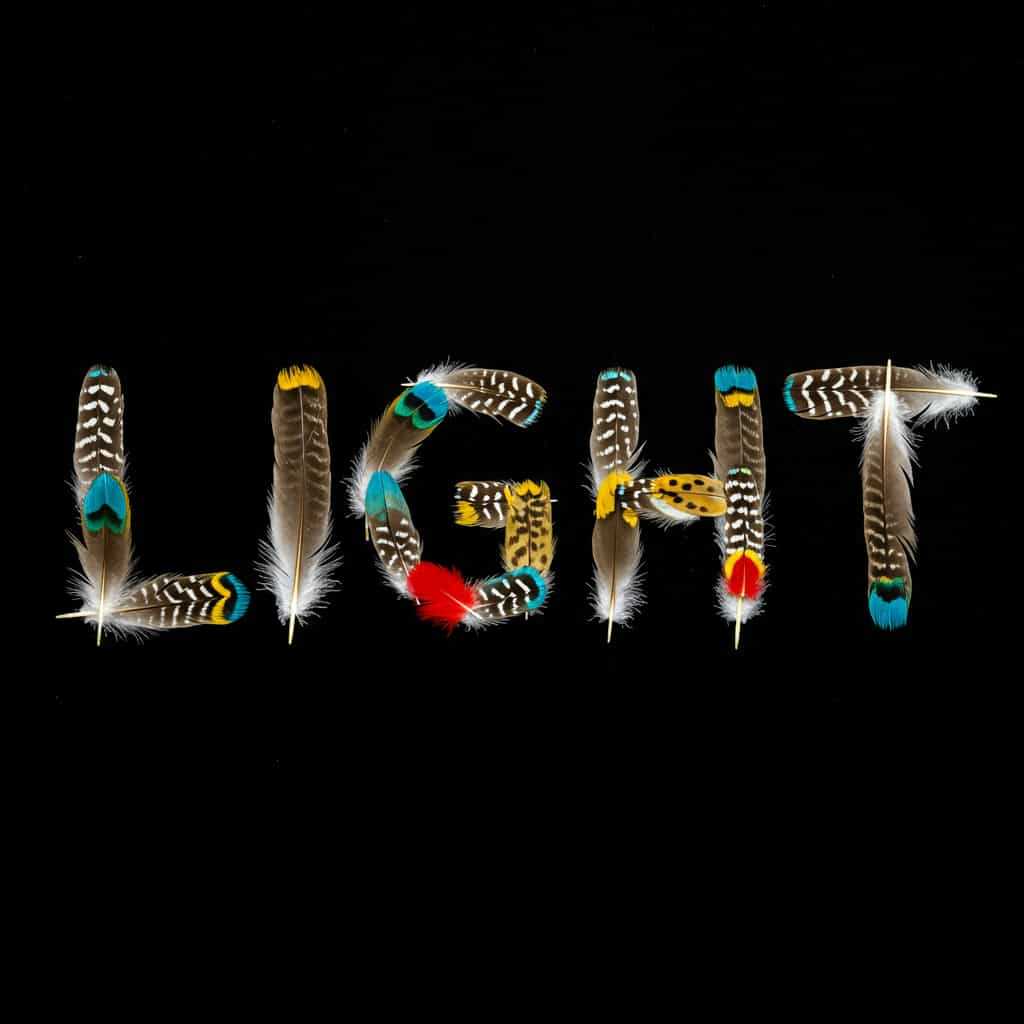
Clips made with Kling 4.0 from a prompt, a photo or a set of reference images. Unedited outputs from this page, with the prompt for each. The input photos are AI-generated people, not real ones.
30-second scene · Kling 4.0
A lighthouse keeper climbs the spiral stairs with a lantern, then steps out onto the balcony as a storm rolls in over the sea; lightning lights up the waves, and the camera circles him as he raises the lantern toward a ship in the distance. Cinematic, slow tracking shots.
Key Features of Kling 4.0
Kling 4.0 is the newest video model from Kuaishou's Kling team and the successor to Kling 3.0. Earlier Kling versions split text to video, image to video and reference work across separate models. Kling 4.0 does all of it in one model, picks the right mode from what you give it, edits existing video from a sentence and runs up to 30 seconds, twice as long as Kling 3.0.
01 / 05
Up to 30 Seconds in One Generation
Pick 5, 10, 15, 20 or 30 seconds in the Duration menu. Thirty seconds is long enough for a scene with a beginning, middle and end, or a full ad spot, without stitching clips together. For a long clip, write what happens over time, in order, rather than piling on adjectives. Tip: test the idea as a 5-second clip at 720p first, then render the version you like at full length and 1080p.
Make a 30-Second Clip02 / 05
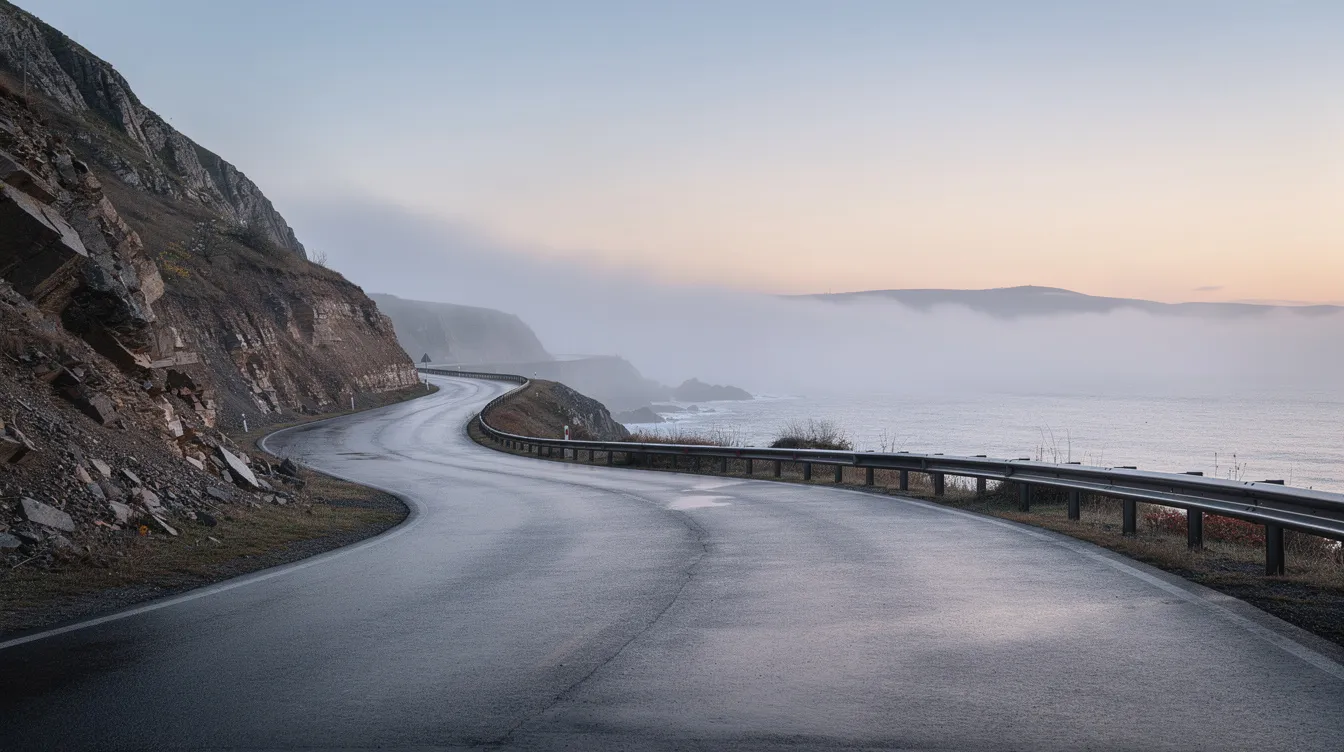
Kling 4.0 Image to Video with Start and End Frames
Open the Image tab and choose Start frame: the video opens on exactly your picture. Choose Start & end and add a second picture, and the model animates the path from one to the other, which is handy for product reveals and before-and-after shots. The clip takes its shape from your image, so the aspect ratio picker is skipped. In the prompt, describe only what happens in between.
Animate a Photo with Kling 4.0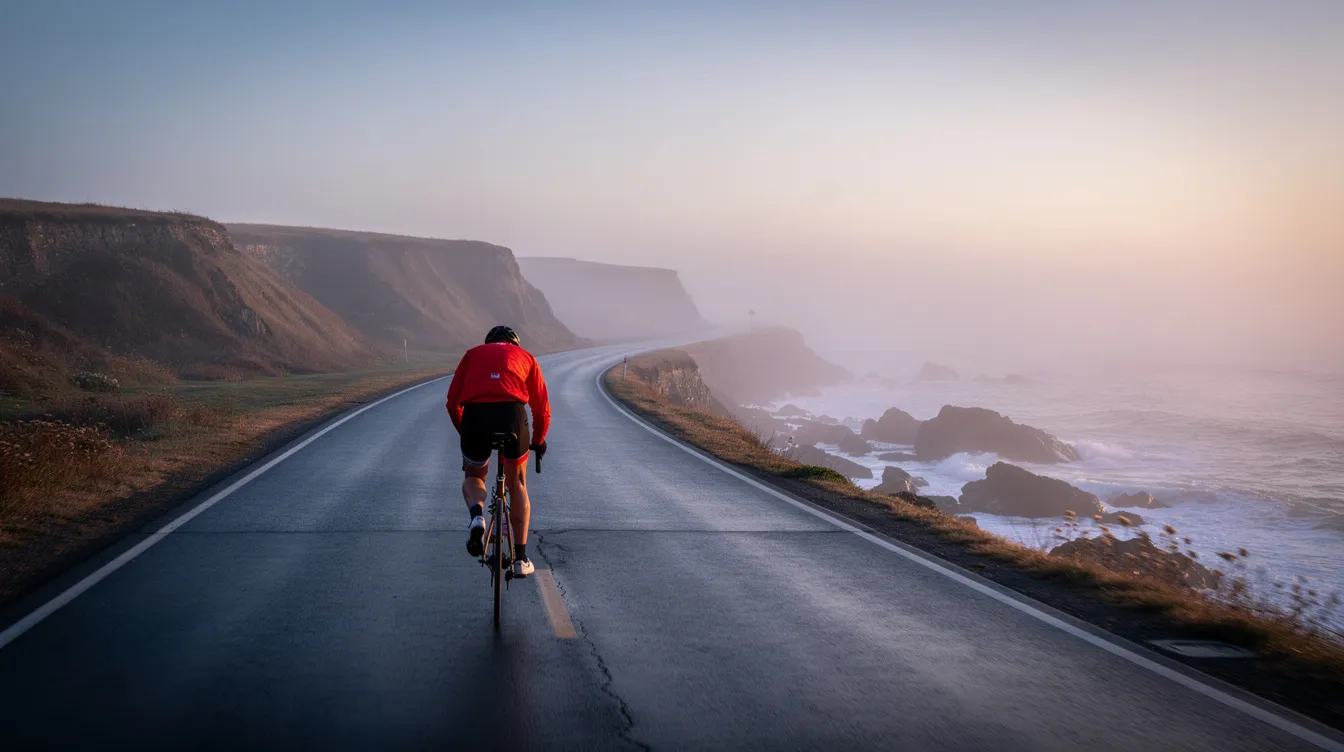 First frame
 Last frame
03 / 05
Kling 4.0 Reference Images for Consistent Characters and Products
A reference image is a picture of the person, product or place you want to keep the same. On the Image tab, pick References, upload up to 9 pictures and name them in the prompt as [Image1], [Image2] in the order you added them. The video does not have to open on any of them, so the same mascot, outfit or bottle can star in clip after clip. Say what each image is for.
Use Reference Images in Kling 4.0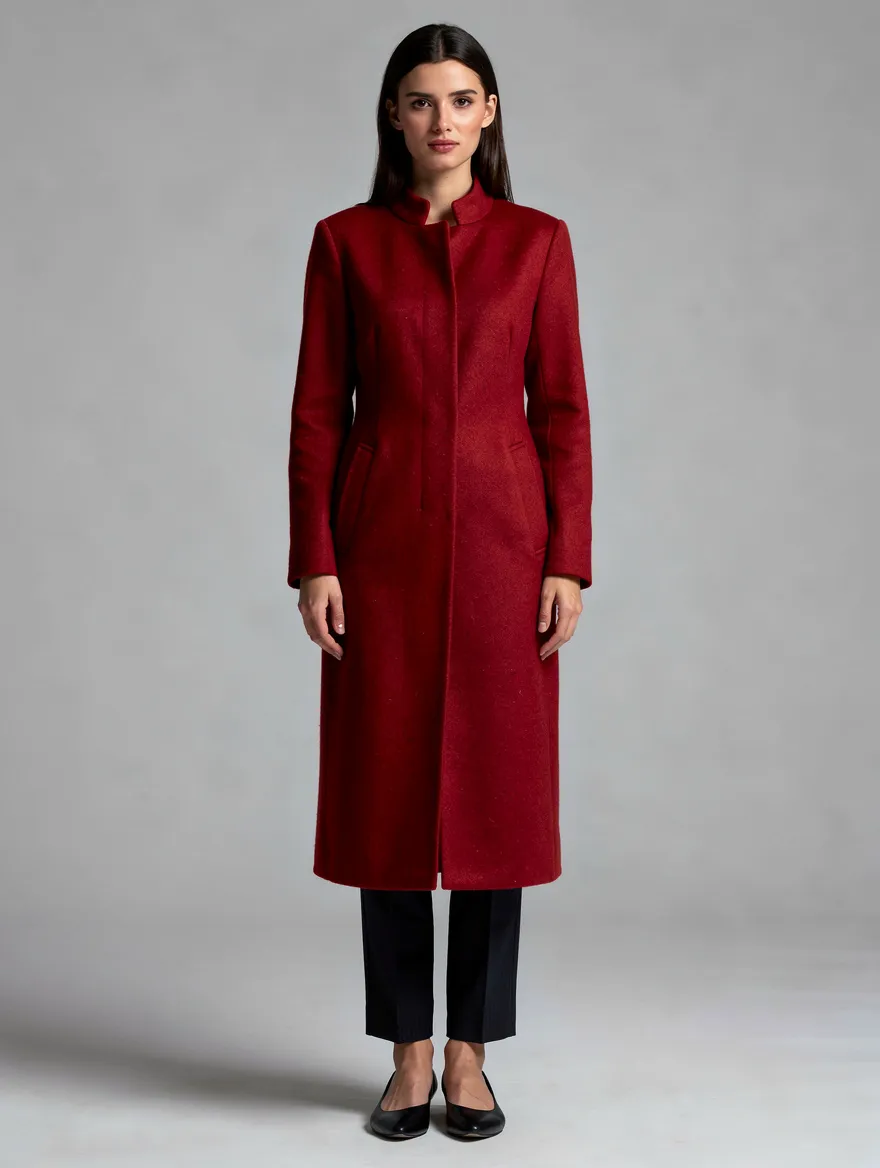 Reference 1
 Reference 2
04 / 05
Kling 4.0 Video Editing with One Sentence
Upload a clip on the Video tab, choose Edit and say what to change: the background, the weather, an outfit or an object. The model keeps the motion, framing, shape and length of your video and changes only what you describe, with no masks or frame-by-frame work. Name what must stay the same, such as the person and their movement. You can add reference images next to the video, for example the new jacket.
Edit a Video with Kling 4.0- Input clip
05 / 05
Borrow Motion and Camera from Any Clip
Choose Reference on the Video tab and the model takes the camera move, the motion or the style of your clip and uses it in a brand-new scene you describe. Reuse a drone shot over a different landscape, or give a dance to a new character. Unlike an edit, the result can be any length on the menu and any aspect ratio. Short, steady clips with one clear movement copy best.
Reference a Video in Kling 4.0- Input clip
How to Use Kling 4.0 on ImageFX
Choose Text, Image or Video
Open the generator at the top of this page with Kling 4.0 already selected. Stay on Text for a prompt-only clip, use the Image tab for a start frame, start and end frames or references, or the Video tab to edit or reference a clip.
Describe the Shot and Pick Settings
Write the subject, the action, the setting and the camera, in that order. Then pick the shape (16:9, 9:16, 1:1 or 21:9), the length and 720p or 1080p. The Generate button shows the price before you start.
Generate and Download
Click Generate and download the MP4 when it appears beside the form. Long 1080p clips can take several minutes, and you can leave the page: every video is saved to your account.
A Kling 4.0 run costs 46–276 credits depending on length; the Generate button shows the price first, and a failed run costs nothing. See plans and credit packs
Explore More AI Video Models on ImageFX
These models run in the same generator. Try a short version of your prompt on a cheaper one before committing to a long 1080p clip.
- Kuaishou (Kling) · Text-to-video, image-to-videoKling 4.0 FlashCheaper, faster Kling 4.0 drafts at 720p, with sound, up to 20 seconds.From 19 credits
- Kuaishou (Kling) · Text-to-video, image-to-videoKling 3.0 OmniKling 3.0 with reference images, video edits and native audio, up to 4K.From 44 credits
- Kuaishou (Kling) · Text-to-video and image-to-videoKling 3.04K Kling clips with native audio from text or frames.From 40 credits
- Kuaishou (Kling) · Text-to-video, image-to-videoKling O1Lower-cost prompt-led edits of 3 to 10-second clips.From 22 credits
- ByteDance · Text-to-video, image-to-videoSeedance 2.530-second multi-shot scenes with dialogue and music.From 45 credits
- Google · Text-to-video and image-to-videoVeo 3.1Polished 1080p single shots with generated dialogue.From 40 credits
FAQs About Kling 4.0
What is Kling 4.0?
It is Kuaishou's newest AI video model and the successor to Kling 3.0. It makes clips of 5 to 30 seconds at 720p or 1080p from text, start and end frames, reference images or a reference video, and it edits existing videos from a written instruction, all in one model.
Kling 4.0 vs Kling 3.0: which should I use?
Use Kling 4.0 for longer clips (up to 30 seconds instead of 15), reference images, the 21:9 shape and editing your own video. Use Kling 3.0 when you need 4K or sound generated with the picture, since Kling 3.0 has a Generate Audio switch on ImageFX.
Kling 4.0 or Kling 4.0 Flash?
The full model goes up to 1080p and 30 seconds and takes an end frame. Kling 4.0 Flash is 720p only, runs up to 20 seconds and takes a start frame only, but it is faster, costs less and makes sound. Draft with Flash, then render the keeper on the full model.
How long can Kling 4.0 videos be?
On ImageFX you pick 5, 10, 15, 20 or 30 seconds, at 720p or 1080p. A 720p clip costs about two thirds of the 1080p price. An edit is always as long as the video you upload, and you pay per second.
What video can I upload to Kling 4.0?
An MP4 or MOV of 3 to 30 seconds, at least 700 pixels on each side. An edit keeps the shape and length of your video. With a video, you pay for the output seconds plus your video or the output, whichever is longer.
Can I combine Kling 4.0 reference images with a start frame?
Not on ImageFX: one run takes either reference images (up to 9) or a start frame, with an optional end frame. You can, however, add reference images next to a video on the Video tab, for example a product to place into an edited clip.
Does Kling 4.0 make sound?
ImageFX has no Generate Audio switch for Kling 4.0, and Kling's notes for this model don't describe sound. If you need sound made together with the picture, use Kling 4.0 Flash, Kling 3.0 Omni or Seedance 2.5.
How do I write a good Kling 4.0 prompt?
Describe the subject, the action, the setting and the camera, in that order: "a red fox trots across a snowy meadow at sunrise, cinematic tracking shot" works better than "fox in snow". For long clips, write what happens over time. With references, say what each one is for.
Can I use Kling 4.0 videos commercially?
ImageFX doesn't claim the videos you generate, but commercial use is governed by Kuaishou's terms for Kling, which can change. Check them before a commercial project, and see section 3 of our Terms of Service.
Try Kling 4.0 on ImageFX
Turn a prompt, a photo, a set of references or your own footage into a clip of up to 30 seconds at 1080p.
Create with Kling 4.0