
Model
The AI that will make it for you. Each one has its own look and price. Not sure? Keep the one that's already picked.
 Kling 3.0 Motion ControlKuaishou (Kling)24 Credits
 Veo 3.1 FastGoogle
- Veo 3.1Google
 Grok Imagine VideoxAI
- Grok Imagine Video 1.5xAI
 Sora 2 ProOpenAI
- Sora 2OpenAI
- Kling 4.0Kuaishou (Kling)
- Kling 4.0 FlashKuaishou (Kling)
- Kling 3.0 OmniKuaishou (Kling)
- Kling O1Kuaishou (Kling)
- Kling 2.6 Motion ControlKuaishou (Kling)
- Kling Avatar V2Kuaishou (Kling)
- Kling Lip SyncKuaishou (Kling)
- Kling 3.0Kuaishou (Kling)
- Kling v2.6Kuaishou (Kling)
- Kling v2.5 Turbo ProKuaishou (Kling)
 Wan 2.5 T2VAlibaba (Wan Video)
- Wan 2.5 T2V FastAlibaba (Wan Video)
- Wan 3.0Alibaba (Wan)
- Wan 3.0 PrimeAlibaba (Wan)
- Happy Horse 1.1Alibaba
- Happy Horse 1.0Alibaba
- Wan 2.7 T2VAlibaba (Wan)
- Wan 2.7 I2VAlibaba (Wan)
- Wan 2.7 R2VAlibaba (Wan)
- Wan 2.7 VideoEditAlibaba (Wan)
- Wan 2.6 T2VAlibaba (Wan)
- Wan 2.6 I2VAlibaba (Wan)
- Wan 2.6 I2V FlashAlibaba (Wan)
- Wan 2.5 I2VAlibaba (Wan Video)
- Wan 2.5 I2V FastAlibaba (Wan Video)
- Wan 2.2 T2V FastAlibaba (Wan)
- Wan 2.2 I2V FastAlibaba (Wan)
- Wan 2.2 5B FastAlibaba (Wan)
- Wan 2.2 S2VAlibaba (Wan)
- Wan 2.2 Animate ReplaceAlibaba (Wan)
 Seedance 2.5ByteDance
- Seedance 2.0ByteDance
- Seedance 1 ProByteDance
- Seedance 1 Pro FastByteDance
- PIPixVerse v5PixVerse
- PIPixVerse v4.5PixVerse
- LURay 2 720pLuma Labs
- LURay Flash 2 720pLuma Labs
 Hailuo 2.3MiniMax
- Hailuo 2.3 FastMiniMax
Photo of the person *
The person, pet or character who should move. A clear, full-body photo works best. Their look comes from this photo, the movement from the video.
Video *
The AI makes the person in your photo move exactly like the person in your video: dance, gestures, walking. The result is as long as your video.
Resolution
How sharp the result is. Higher numbers look sharper but cost more credits and take longer. Try a lower one first to test your idea.
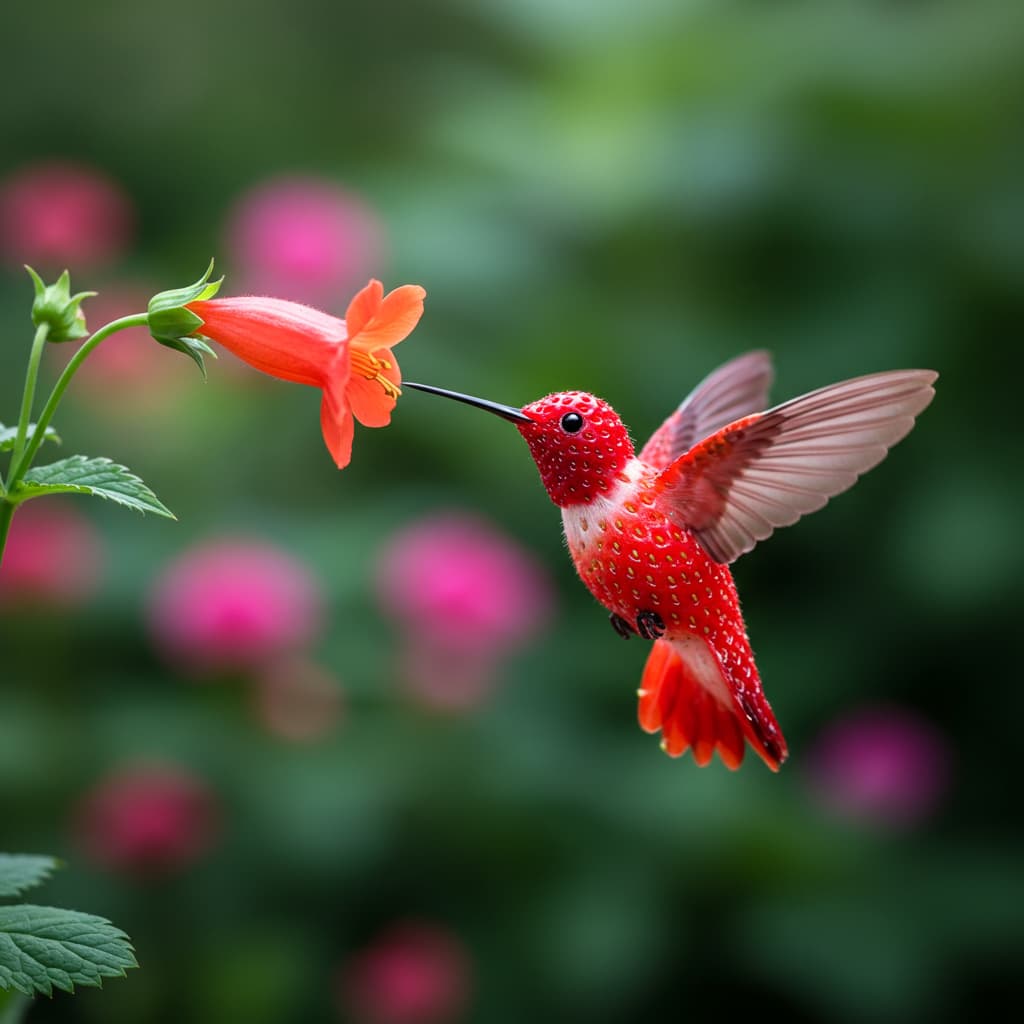
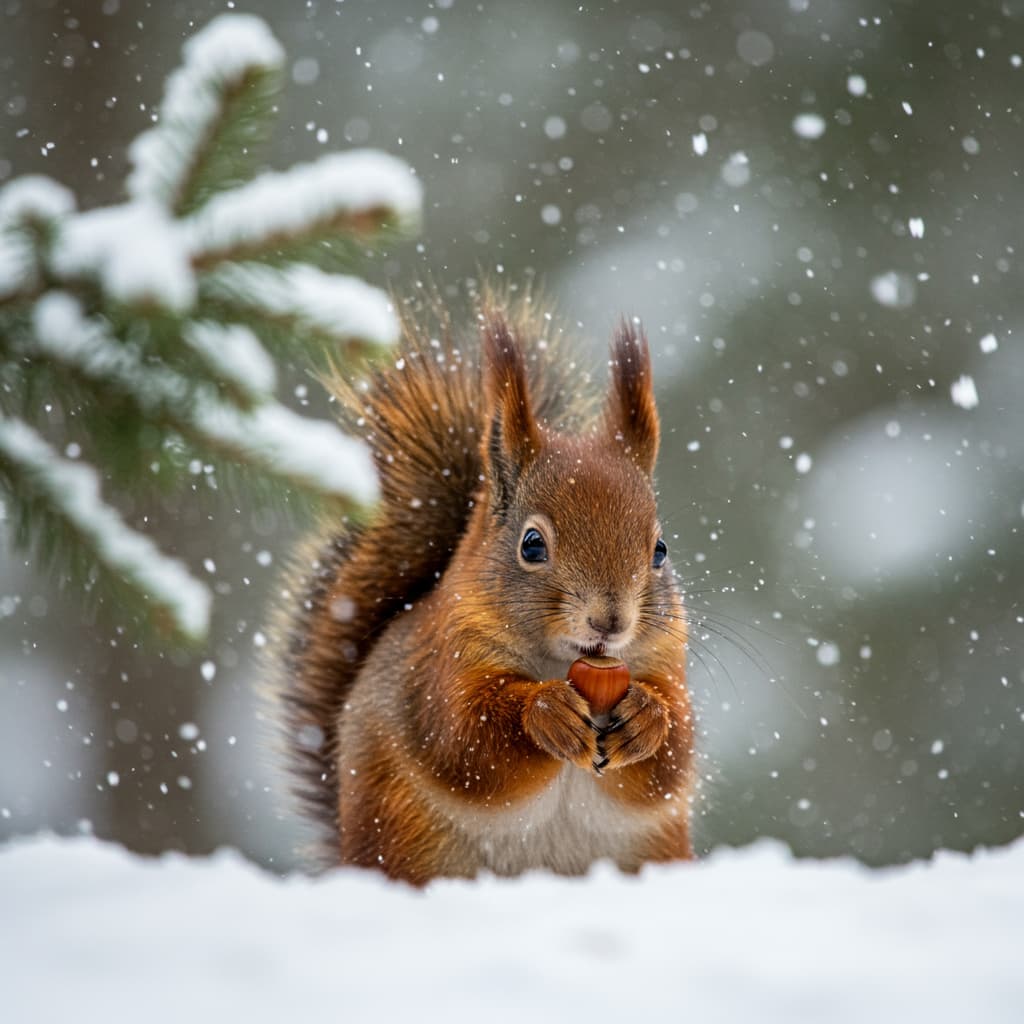

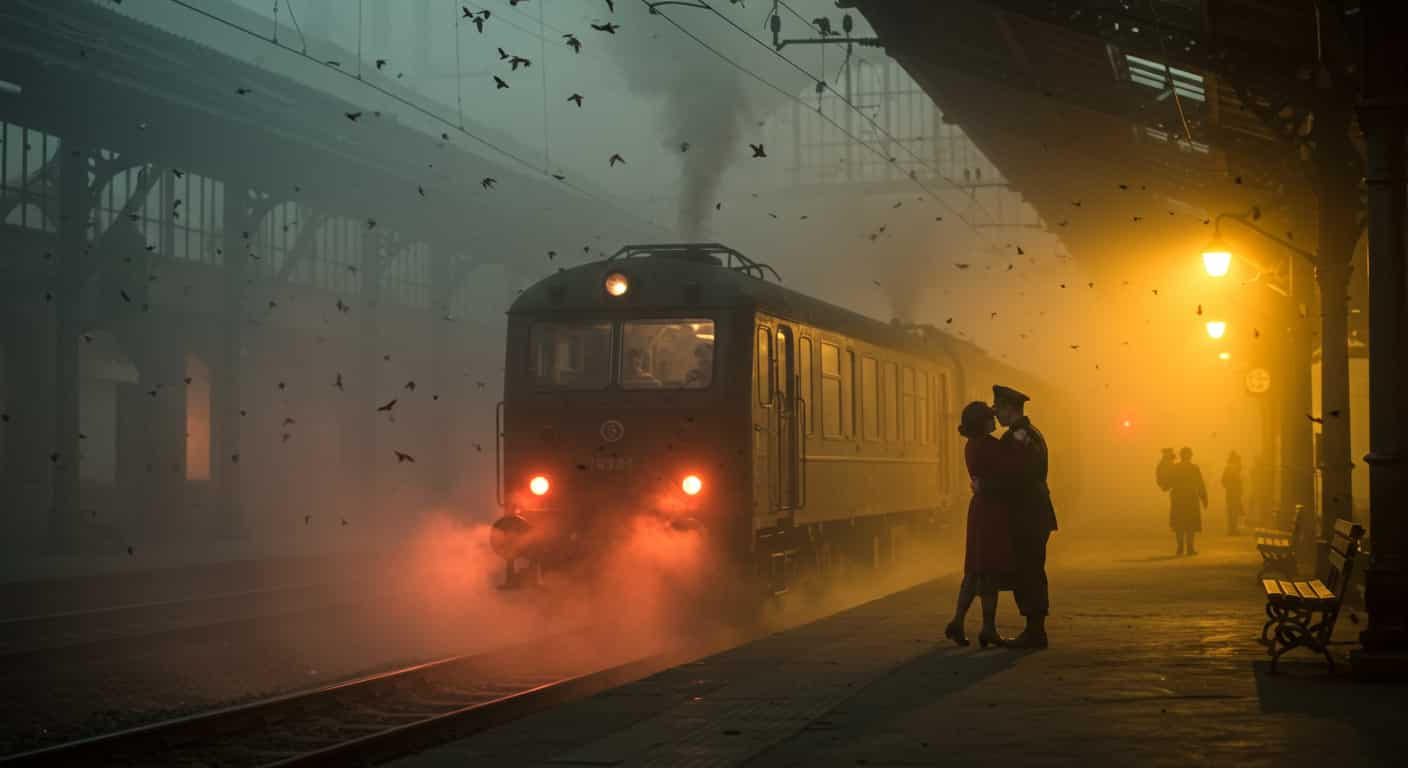
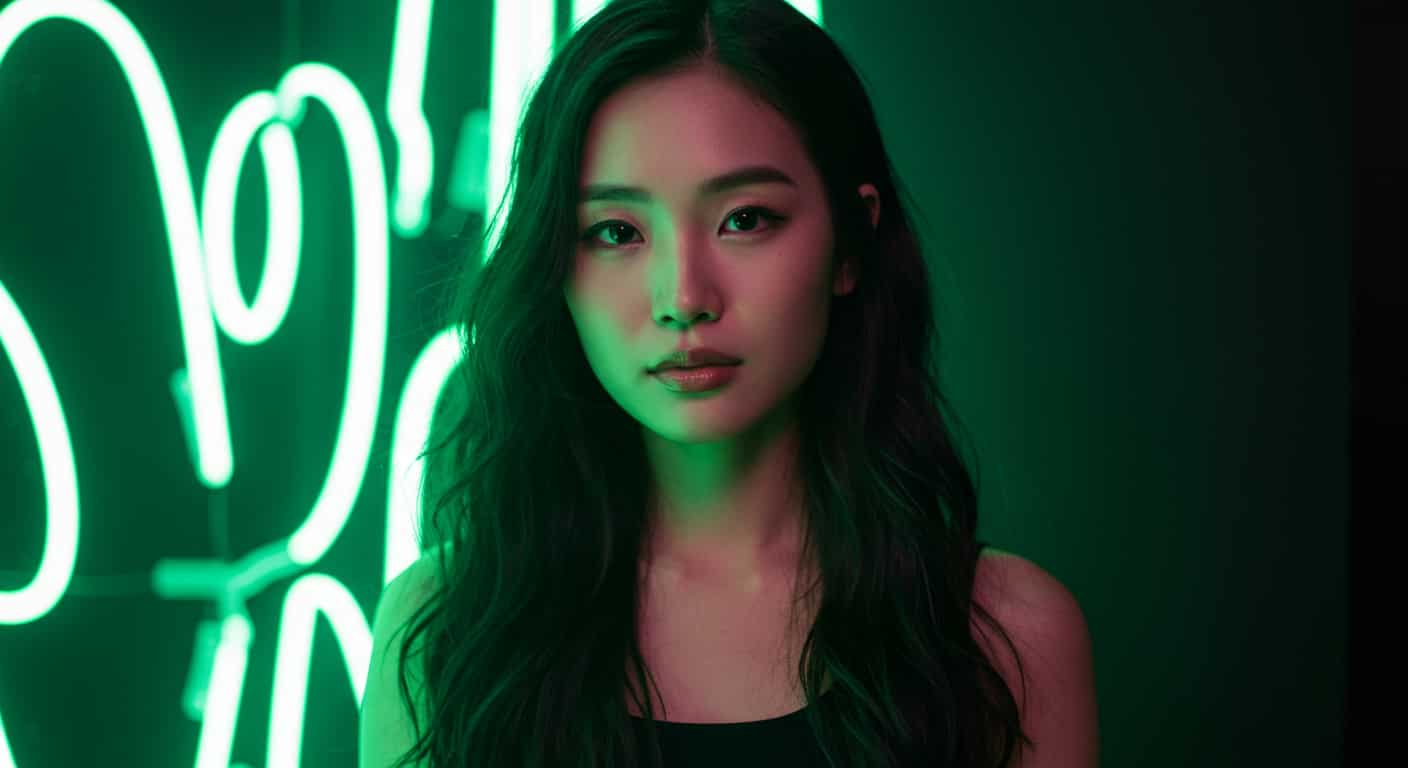

Kuaishou (Kling) · Text to video
Kling 3.0 Motion Control: Copy Any Video Move onto Your Photo
Use Kling 3.0 Motion Control online to make the character in your photo move exactly like the person in your video: the same dance, gestures and walk, for up to 30 seconds at 720p or 1080p.
Key Features of Kling 3.0 Motion Control
Kling Motion Control is Kuaishou's AI motion transfer model: the look comes from your photo, the movement from your video. Kling 3.0 Motion Control is its 3.0 update. Compared with Kling 2.6 Motion Control, Kuaishou says it keeps the character's identity more consistent and transfers motion more smoothly, and on ImageFX it costs the same per second at each quality level.
01 / 05
Copy Any Move onto Your Photo
Upload a photo of a person, pet or illustrated character, then a video of someone doing the move. Kling 3.0 Motion Control keeps the face, outfit and style from the photo and takes the dance, gestures, walk and expressions from the video. You need no animation skills and no prompt. Tip: pick a photo in a pose close to the first frame of the video, so the motion starts naturally.
Try Kling 3.0 Motion Control Now(Photo: a cartoon fox mascot, full body; video: a person waving and taking a bow) Optional prompt: on a stage with colorful spotlights.
Try this prompt02 / 05
Kling Motion Control Dance Videos up to 30 Seconds
The result runs as long as your video, anywhere from 3 to 30 seconds, so a whole dance trend fits in one run. On ImageFX the character follows the framing and direction of the dancer in your video, which is what allows clips past 10 seconds. You pay per second of the result, so trim the video to the part you need before uploading.
Make a Photo Dance(Photo: a grandmother in her kitchen, full body; video: a 20-second dance trend with music) Optional prompt: warm afternoon light, the same kitchen.
Try this prompt03 / 05
Optional Prompt for Background and Effects
The prompt is optional. Leave it empty to keep the photo's setting, or describe a new background, the lighting or extra elements such as confetti or falling snow. Describe the motion you are transferring too, like "she spins and waves", which helps Kling 3.0 Motion Control understand the action. Keep it short: the video already sets the movement.
Change the Scene(Photo: a man in a suit; video: a magic trick with a card) Optional prompt: he performs a card trick on a rooftop at sunset, city skyline behind him, light wind.
Try this prompt04 / 05
Keeps Your Video's Music and Sound
Music and sound from your video carry over to the result, so a dance stays on the beat and a spoken line stays in time. That makes Kling 3.0 Motion Control handy for trends, where the audio is half the joke. If you want different music, swap the track in any editor afterwards; the movement will still match the original beat.
Make a Dance Video(Photo: a golden retriever standing on its hind legs; video: a short viral dance with its song) No prompt needed.
Try this prompt05 / 05
Kling 3.0 Motion Control at 720p or 1080p
Pick 720p for tests and social posts or 1080p for the final. A 720p run costs a little over half the 1080p price per second. Sharp, well-lit photos where the whole body and head are visible give the best identity and detail at either setting. Test a short section of your video at 720p before you render the full clip.
Animate a Photo in 1080p(Photo: an illustrated knight, full body, plain background; video: a martial arts form, steady camera) Optional prompt: in a misty bamboo forest.
Try this promptHow to Use Kling 3.0 Motion Control on ImageFX
Upload a Photo and a Video
Open the generator at the top of this page with Kling 3.0 Motion Control selected. Add a clear photo of the character, then an MP4 or MOV of 3 to 30 seconds showing the movement.
Add a Prompt (Optional) and Pick Quality
Describe a new background, lighting or extra elements, or leave the prompt empty. Choose 720p for a cheaper test or 1080p for the final. The Generate button shows the price for your video length.
Generate and Download
Click Generate and download the MP4 when it appears beside the form. Longer videos take more time; you can leave the page, because every result is saved to your account.
A Kling 3.0 Motion Control run costs 24–141 credits depending on length; the Generate button shows the price first, and a failed run costs nothing. See plans and credit packs
Explore More AI Video Models on ImageFX
Kling 3.0 Motion Control runs in the same generator as these models. Each one moves a character in a different way.
- Kuaishou (Kling) · Motion controlKling 2.6 Motion ControlThe earlier Kling motion transfer, for a second take on the same move.From 14 credits
- Alibaba (Wan) · Character replacementWan 2.2 Animate ReplacePut your photo's character into the video itself, in place of the person there.From 10 credits
- Kuaishou (Kling) · Talking videoKling Avatar V2Make a portrait talk or sing from an audio clip.From 11 credits
- Kuaishou (Kling) · Text-to-video, image-to-videoKling 4.0Reference a video's motion for a whole new scene, up to 30 seconds.From 46 credits
- Kuaishou (Kling) · Text-to-video, image-to-videoKling O1Restyle or swap the character in a clip with a prompt.From 22 credits
- xAI · Image-to-videoGrok Imagine Video 1.5Animate a photo with sound and lip-synced speech.From 12 credits
FAQs About Kling 3.0 Motion Control
What is Kling 3.0 Motion Control?
Kling 3.0 Motion Control is Kuaishou's model for AI motion transfer. You give it a photo of a character and a video of a movement, and it makes a new video where your character performs that movement while keeping the look from the photo.
Kling 3.0 Motion Control vs 2.6: which is better?
Kuaishou describes 3.0 as better at keeping the character's identity and smoother in motion than 2.6. On ImageFX both cost the same per second at each quality level, so start with 3.0, and try 2.6 if you want a second, different take on a difficult clip.
What photo works best for Kling 3.0 Motion Control?
A sharp, well-lit photo where the whole body and head are visible and not covered. Match the framing to the video: avoid a half-body photo with a full-body dance video. A pose similar to the start of the video helps too.
What video can I upload to Kling Motion Control?
An MP4 or MOV of 3 to 30 seconds. Clear, steady movement from one visible person works best; very fast or chaotic motion and quick cuts are harder to follow. The result is as long as your video, and you pay per second of it.
Do I need a prompt for Kling 3.0 Motion Control?
No. The photo and the video are enough. A short prompt can add a new background, lighting or extra elements, and describing the transferred motion, such as "he jumps and claps", can help the model understand it.
Does Kling 3.0 Motion Control keep the sound of my video?
Yes. Music and sound from your reference video carry over to the result, so dances stay on the beat. You can replace the audio in any video editor after downloading.
Can Kling 3.0 Motion Control make a pet or cartoon dance?
Yes, as long as the body is clearly visible and its proportions are close to the person in the video. Characters with a human-like body copy moves most faithfully; very different shapes may give looser results.
Can I use Kling 3.0 Motion Control videos commercially?
ImageFX doesn't claim the videos you generate, but commercial use is governed by Kuaishou's terms for Kling, which can change. Check them, use photos and videos you have the right to use, and see section 3 of our Terms of Service.
Try Kling 3.0 Motion Control on ImageFX
Make any photo dance, wave or walk exactly like your video, for up to 30 seconds at 1080p.
Animate a Photo