


Model
The AI that will make it for you. Each one has its own look and price. Not sure? Keep the one that's already picked.
LUPhotonLuma Labs6 Credits
 Nano Banana 2 LiteGoogle
- ImageFXImagen 4 · Google DeepMind
- Nano Banana ProGoogle
- Nano Banana 2Google
 GPT ImageOpenAI
 Qwen ImageAlibaba Qwen
- BLFlux Kontext ProBlack Forest Labs
- BLFlux 2 MaxBlack Forest Labs
- BLFlux ProBlack Forest Labs
- BLFlux SchnellBlack Forest Labs
- IDIdeogram v3 QualityIdeogram
- IDIdeogram v3 TurboIdeogram
 Seedream 5.5ByteDance
- Seedream 4.5ByteDance
- RERecraft v3Recraft
- RERecraft v3 SVGRecraft
- STStable Diffusion 3.5 LargeStability AI
- LUPhoton FlashLuma Labs
- NVSanaNVIDIA
 MiniMax Image-01MiniMax
- TEHunyuan Image 3Tencent
- BRBria Image 3.2Bria AI
- PRP-ImagePrunaAI
- PRHiDream L1 FastPrunaAI
Start from words only. You describe the picture and the AI draws it from scratch.
Describe the picture in your own words: what's in it, the style (photo, cartoon, painting…), the colors and the mood. More detail gets you closer to what you imagine.
Aspect Ratio
The shape of the result. 16:9 is wide, like YouTube or a TV. 9:16 is tall, like TikTok or phone stories. 1:1 is square, like an Instagram post.
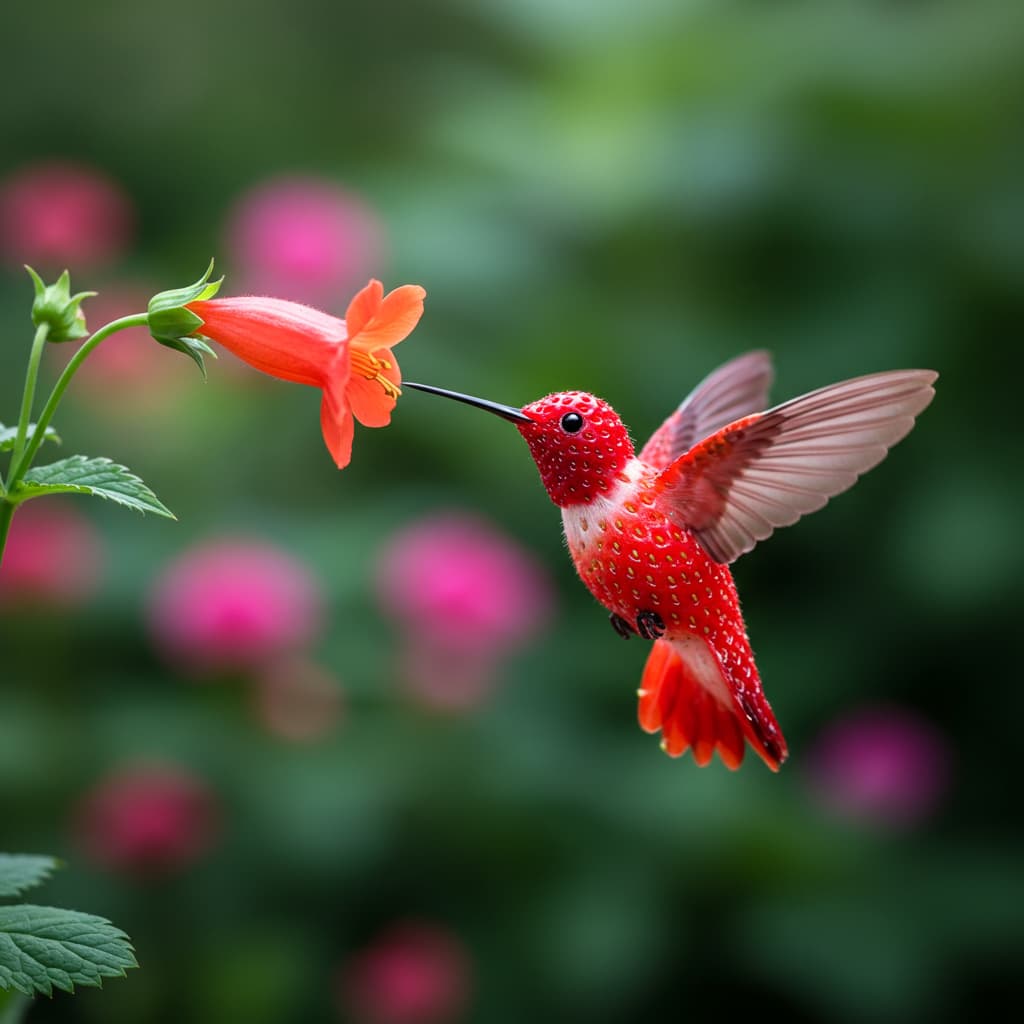
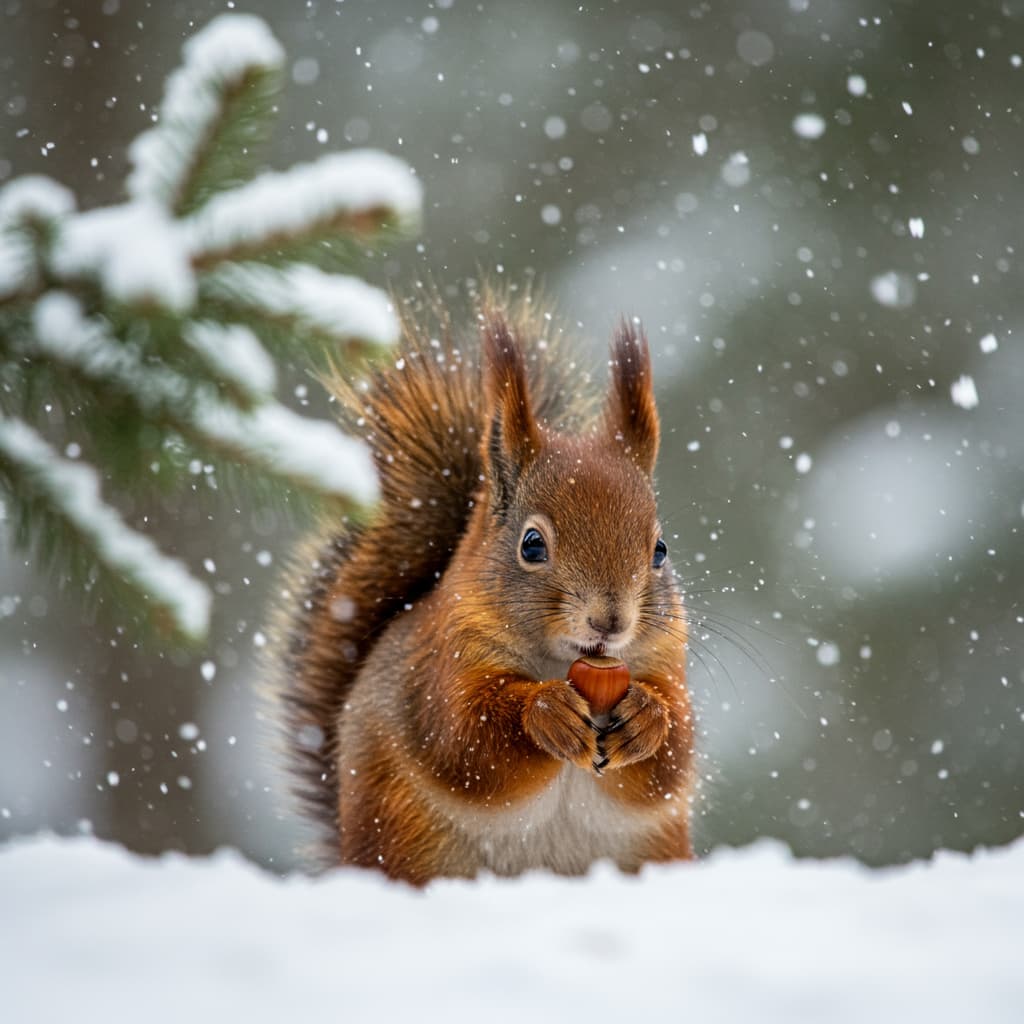
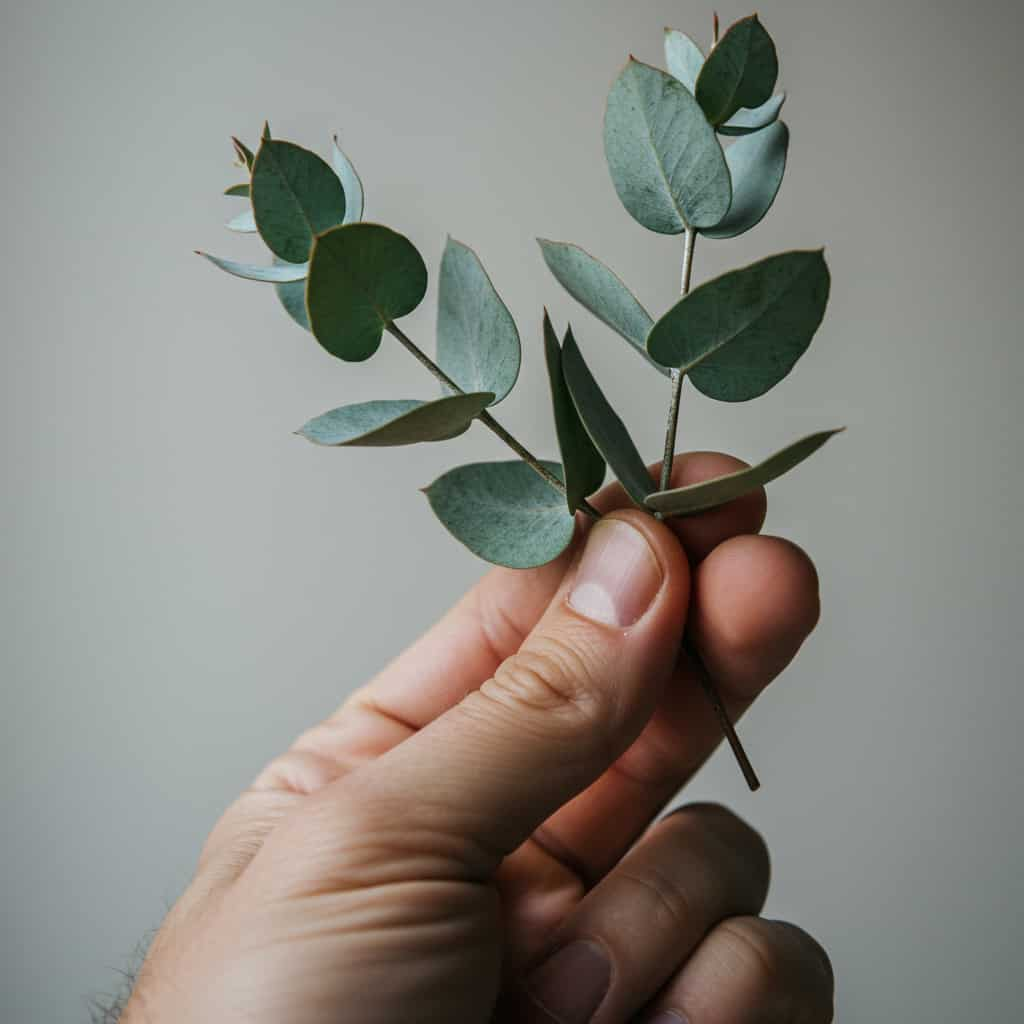
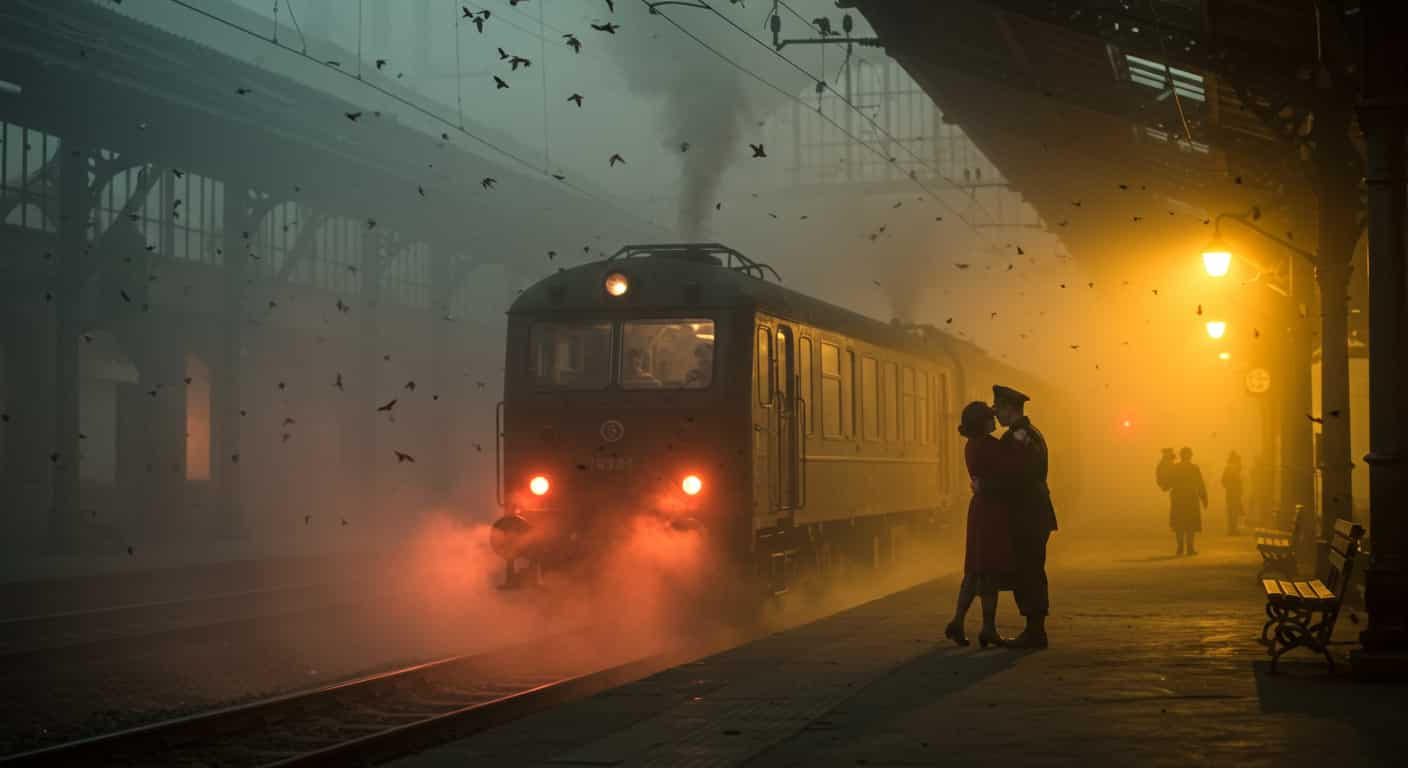
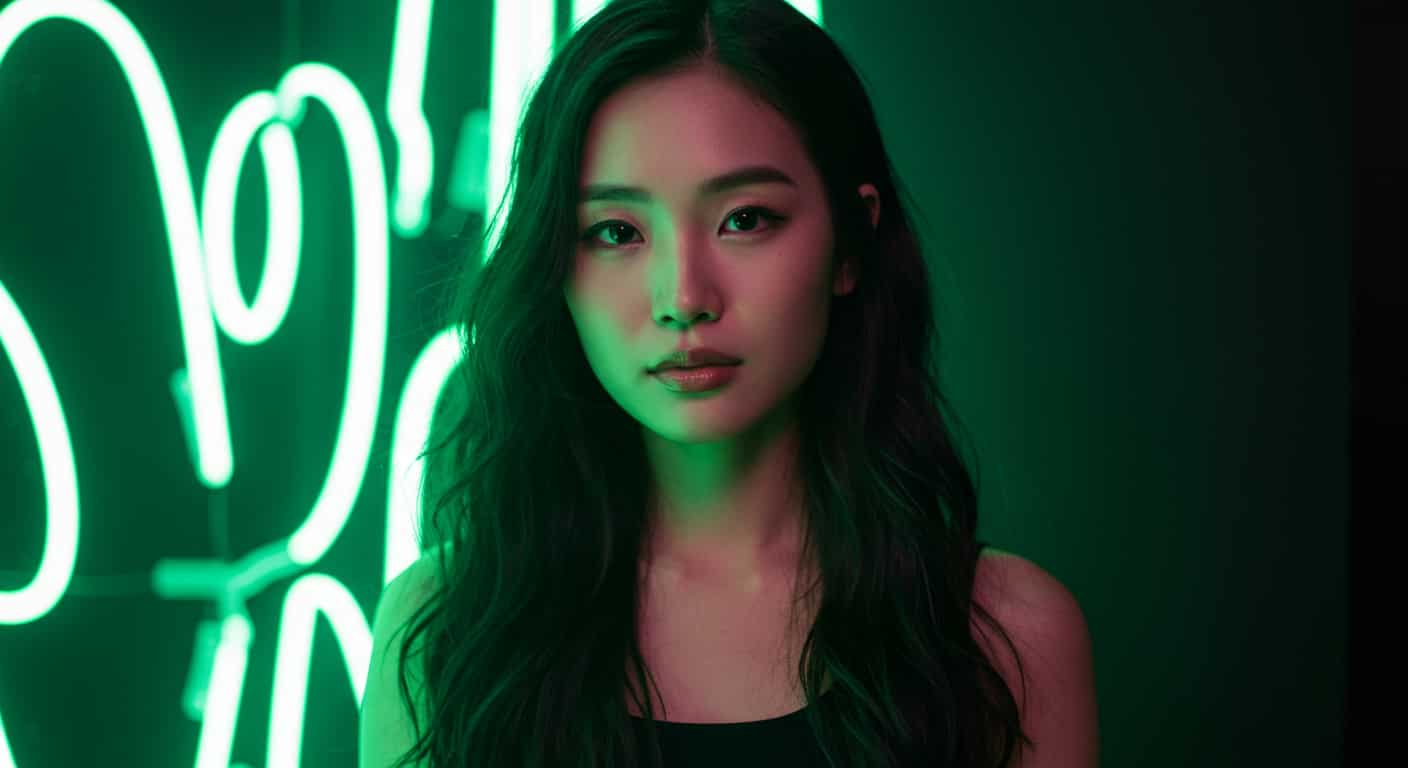
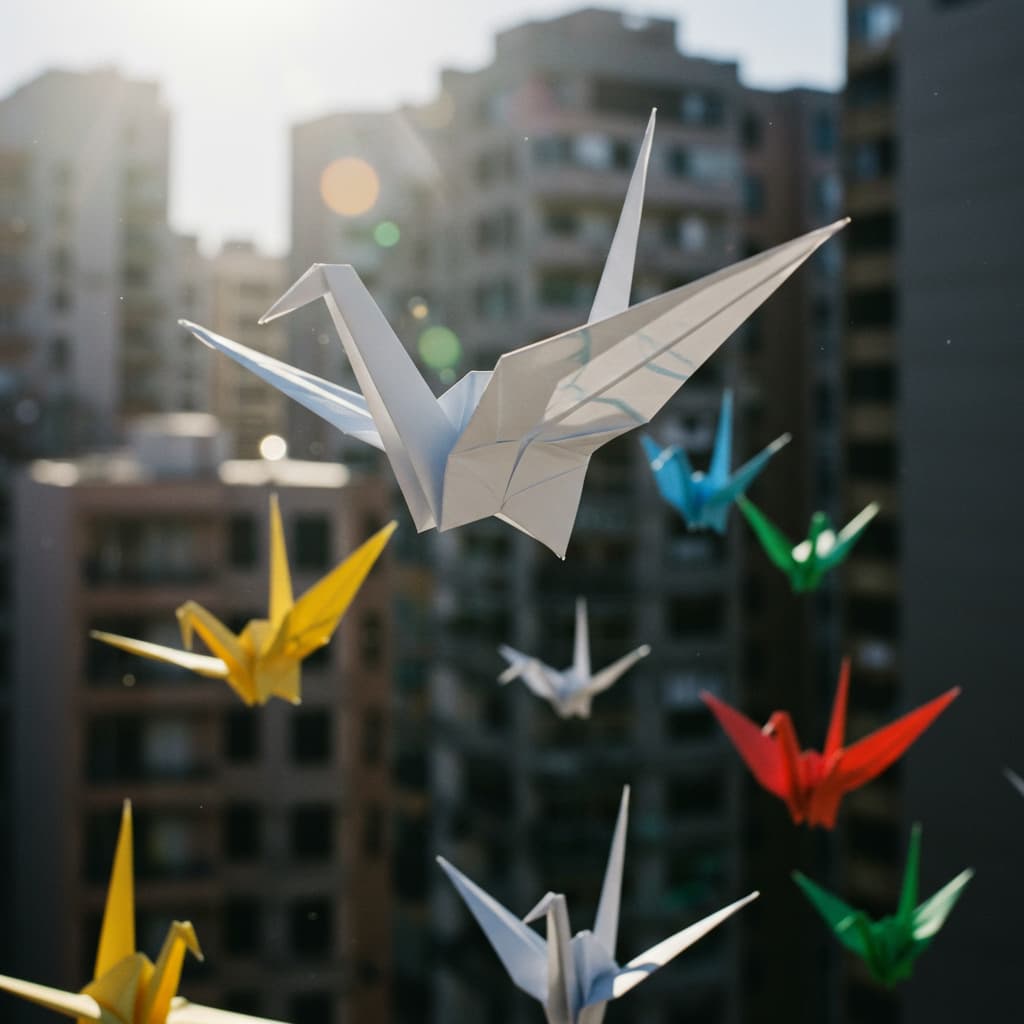

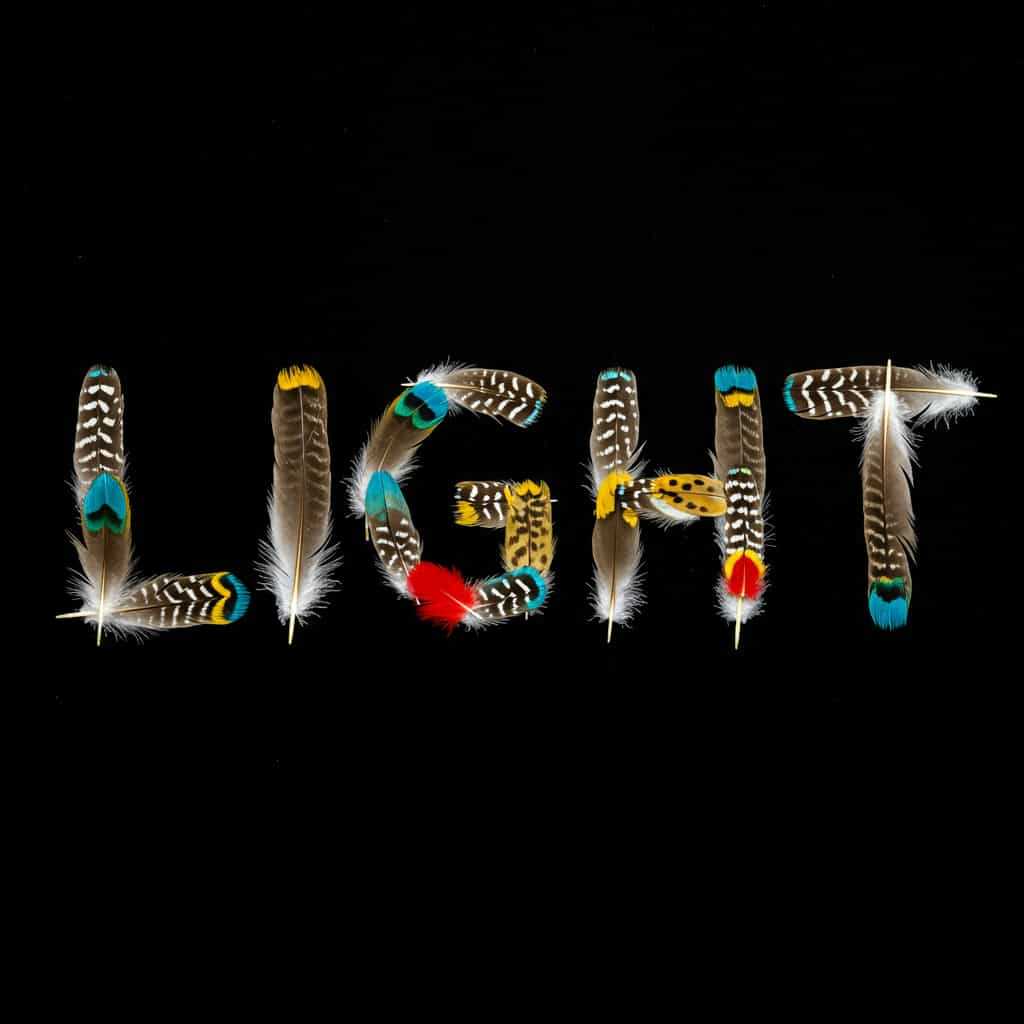
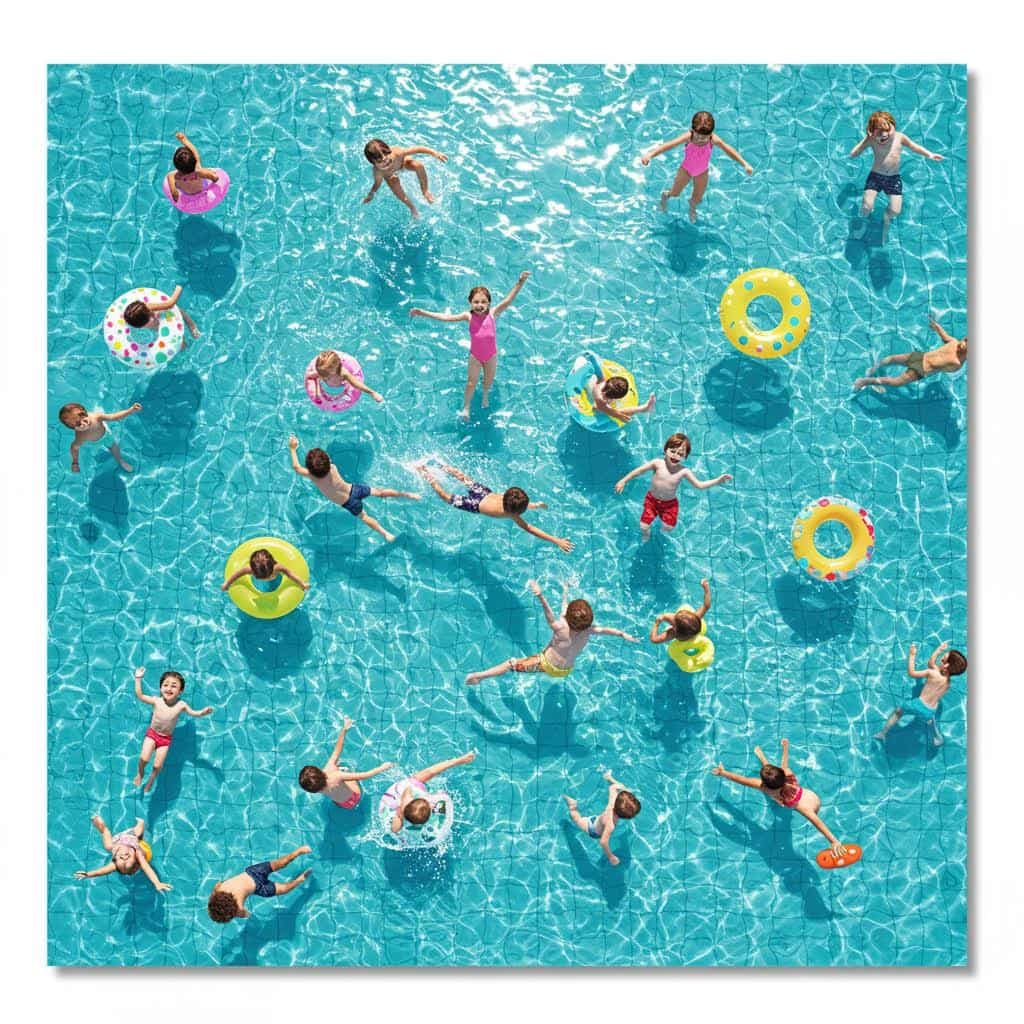
Luma Labs · Text & image to image
Photon AI Image Generator
Photon is Luma AI's image model for natural, photographic pictures and cinematic 21:9 frames. Describe a scene like a photo brief and Photon returns an image that reads like a photograph, not a render.
Key Features of Photon
Photon is the image model from Luma AI, the company behind the Dream Machine video generator and the Ray video models. Luma launched Photon and its cheaper sibling Photon Flash in late 2024 as high-quality models built to be efficient for creative professionals.
01 / 05
Photographic Realism
Light, skin and materials from Photon look observed rather than generated. That suits lifestyle, travel and editorial images, where a picture has to sit next to real photography. Describe the scene plainly and Photon handles the rest.
Try Photon Now21:9 photo of a narrow street in Kyoto at dusk, paper lanterns glowing, a cyclist passing in soft motion blur, light rain on the stones, 35mm film look
Try this prompt02 / 05
Cinematic 21:9 and 9:21 Frames
Because Photon comes from a video company, it is comfortable with wide, cinematic framing. Ultra-wide 21:9 and tall 9:21 are available, so you can make film-still frames and phone wallpapers without cropping. Photon keeps the composition balanced across the wide frame.
Make a Film Still with Photon21:9 film still: a woman in a red coat standing alone on a frozen lake, wide shot, low sun behind her, long blue shadows, quiet and tense
Try this prompt03 / 05
Natural, Unforced Colour
Photon tends not to over-saturate, so its images need less grading before they sit next to real photos. Muted palettes, overcast light and soft window light come out the way a photographer would shoot them. Name the light and the palette in the prompt and Photon keeps to them.
Create a Portrait with PhotonClose portrait of an elderly fisherman with a weathered face, overcast light from a window on the left, muted blue and grey palette, shallow depth of field
Try this prompt04 / 05
Food and Product Scenes That Look Shot
Photon renders surfaces, shadows and small props the way a camera sees them. Overhead food shots, still lifes and product scenes get believable morning light and texture. Write it like a shot list: what is on the table, where the light comes from and how it falls.
Shoot a Still Life with PhotonOverhead photo of a rustic table with a loaf of sourdough, a dish of olive oil and scattered rosemary, morning sun casting long shadows, linen napkin
Try this prompt05 / 05
Guide Photon with a Reference Image
Switch to Image to Image and upload a photo for Photon to use as an image reference, then describe the picture you want. It is a quick way to hold a composition or a look across several images. Because Luma's Ray video models share Photon's aesthetic, it also works as a storyboard tool before you animate a scene.
Upload a Reference to PhotonSame framing as the reference, a quiet harbour at blue hour, fishing boats moored in a row, lamps reflecting on calm water, soft film grain
Try this promptHow to Use Photon on ImageFX
Write a Photo Brief
In the Photon generator above, describe the subject, place, time of day, lens or framing and mood. To guide the result with a picture, switch to Image to Image and upload it.
Choose the Frame
Pick an aspect ratio, including 21:9 for wide film stills or 9:21 for tall wallpapers. Set a seed in More Options if you want to repeat a result.
Generate and Download
Click Generate, check the image beside the form and download the PNG. Every image is saved to your account.
A Photon run costs 6 credits; the Generate button shows the price first, and a failed run costs nothing. See plans and credit packs
Explore More AI Image Models on ImageFX
Photon runs in the same generator as these models. Run one prompt through several to see which look fits your project.
- Luma Labs · Text-to-image and image-to-imagePhoton FlashLow-cost, faster photographic drafts in the same Photon look.From 3 credits
- Black Forest Labs · Text-to-image and image-to-imageFlux 2 MaxFinal images with photoreal detail and long, dense prompts.From 15 credits
- Black Forest Labs · Text-to-imageFlux ProA dependable all-rounder for photos and illustration.From 8 credits
- MiniMax · Text-to-imageMiniMax Image-01Portraits and people-centred scenes.From 5 credits
- ByteDance · Text-to-image and image-to-imageSeedream 5.5Realistic product and portrait shots, and edits from reference photos.From 4 credits
- Google · Text-to-image and image-to-imageNano Banana ProStudio-grade detail at high resolution.From 30 credits
FAQs About Photon
Who makes Photon?
Luma AI, the company behind Dream Machine and the Ray video models. Photon launched in late 2024; its weights are closed and it runs through Luma's API.
What is the difference between Photon and Photon Flash?
Photon Flash is the accelerated version: faster and cheaper, with slightly less detail. Use Flash to explore a scene and Photon for the final image.
How does Photon compare with Flux Pro?
Flux Pro is the more literal prompt follower and handles illustration too. Photon has the more natural, photographic look and supports ultra-wide 21:9.
Can Photon make 21:9 images?
Yes. Photon supports 21:9 and 9:21 as well as the usual square, landscape and portrait shapes. It has no 3:2 or 2:3.
Can I use a reference image with Photon?
Yes, one image reference: switch to Image to Image and upload it. Luma's API also offers separate style and character references for Photon; those aren't available on ImageFX.
Does Photon have a negative prompt?
No. Photon doesn't take one, so describe the scene you want. It does take a seed, which you can set in More Options.
Is Photon good for portraits?
Yes. Photon's natural light and skin tones make it a good choice for portraits and lifestyle photos.
Can Photon put text in images?
Short signs may work, but Photon is not a text specialist. Use Ideogram or Recraft for designs built around words.
Try Photon on ImageFX
Make natural, photographic images and wide cinematic frames with Luma's Photon.
Create with Photon